
Mastering bat: A Modern Alternative to cat with Syntax Highlighting
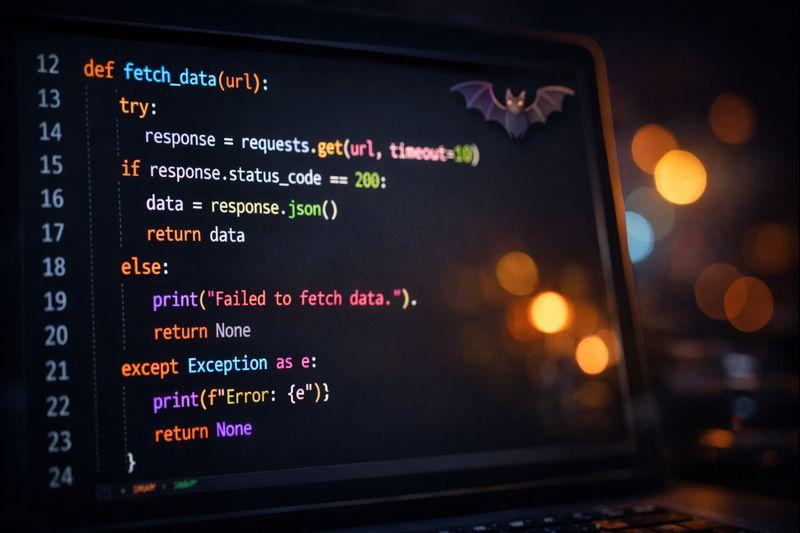
If you spend any amount of time in the terminal, you've almost certainly used cat to quickly view the contents of a file. But what if I told you there's a better way? Enter bat—a cat clone with wings that brings syntax highlighting, line numbers, git integration, and so much more to your terminal.
What is bat?
bat is a modern replacement for the venerable cat command. Written in Rust by the prolific developer David Peter (sharkdp), bat automatically provides syntax highlighting for a wide range of programming and markup languages, displays line numbers, shows git modifications, and integrates seamlessly with your terminal pager.
On Debian and Ubuntu systems, the command is batcat due to a naming conflict with another package, but most users create an alias to simply use bat.
Installation
Installing bat is straightforward on most systems:
# Debian/Ubuntu
sudo apt install bat

# macOS (Homebrew)
brew install bat

# Arch Linux
sudo pacman -S bat

# Cargo (Rust package manager)
cargo install bat
On Debian/Ubuntu, you'll want to create an alias since the binary is named batcat:
# Add to your .bashrc or .zshrc
alias bat="batcat"
Basic Usage
Using bat is as simple as replacing cat with bat:
# View a single file
bat filename.py

# View multiple files
bat file1.js file2.js

# Read from stdin with a specified language
echo '{"name": "value"}' | bat -l json

# Concatenate files
bat header.txt content.txt footer.txt
Display Options That Matter
One of bat's most powerful features is its flexible display options. You can customize exactly what information appears on screen.
Line Ranges
Need to view just a portion of a file? bat has you covered:
# View lines 10-20
bat -r 10:20 filename

# View from line 50 to end
bat -r 50: filename

# View first 30 lines
bat -r :30 filename
Style Components
bat lets you control exactly what decorations appear around your content:
# Full decorations (default)
bat --style=full filename

# Just line numbers
bat --style=numbers filename

# Line numbers and git changes
bat --style=numbers,changes filename

# Plain output (like cat)
bat -p filename
Available style components include: full, auto, plain, changes, header, grid, rule, numbers, and snip.
Highlighting Specific Lines
When discussing code with colleagues or presenting, highlighting specific lines draws attention exactly where you need it:
# Highlight line 10
bat -H 10 filename

# Highlight multiple lines
bat -H 10 -H 20:25 filename
Syntax Highlighting
bat supports hundreds of languages out of the box. You can see the full list with:
bat --list-languagesUsually, bat automatically detects the language from the file extension. But when reading from stdin or dealing with unusual extensions, you can specify the language explicitly:
# Force Python highlighting
bat -l python filename

# Pipe API response and highlight as JSON
curl -s https://api.example.com/data | bat -l json
For files with non-standard extensions, you can create permanent mappings:
# Treat .config files as JSON
bat --map-syntax "*.config:json" filename.config
Themes
bat comes with a variety of color themes to match your terminal aesthetic:
# List available themes
bat --list-themes

# Use a specific theme
bat --theme="Dracula" filename

# Preview themes with fzf
bat --list-themes | fzf --preview="bat --theme={} --color=always /path/to/sample"
Popular themes include Dracula, GitHub, Monokai Extended, Nord, Solarized (dark/light), and OneHalfDark.
Integration with Other Tools
bat truly shines when integrated into your broader workflow. Here are some powerful combinations:
With fzf (Fuzzy Finder)
# Preview files while searching
fzf --preview 'bat --color=always --style=numbers --line-range=:500 {}'
As Your Git Pager
# In .gitconfig
[core]
    pager = bat --style=changes

# View git diffs with syntax highlighting
git diff | bat -l diff
As Your Man Pager
# Add to .bashrc/.zshrc
export MANPAGER="sh -c 'col -bx | bat -l man -p'"
With tail for Log Files
tail -f logfile | bat --paging=never -l logConfiguration
For persistent settings, create a configuration file at ~/.config/bat/config:
# Create config directory
mkdir -p ~/.config/bat

# Generate default config
bat --generate-config-file
Here's a recommended configuration:
# ~/.config/bat/config

# Set your preferred theme
--theme="Dracula"

# Show line numbers and git changes
--style="numbers,changes,header,grid"

# Enable italic text where supported
--italic-text=always

# Set tab width
--tabs=4

# Map custom extensions
--map-syntax "*.config:JSON"
--map-syntax ".ignore:Git Ignore"

# Set pager
--pager="less -FR"
Quick Reference
Here's a handy reference table for the most common operations:
| Task | Command |
|---|---|
| View file | bat file |
| Multiple files | bat file1 file2 |
| Line range | bat -r 10:20 file |
| Plain output | bat -p file |
| Force language | bat -l python file |
| No pager | bat -P file |
| Use theme | bat --theme=Dracula file |
| Highlight line | bat -H 10 file |
| Show all chars | bat -A file |
Useful Aliases
Add these to your shell configuration for even quicker access:
# Add to .bashrc or .zshrc
alias bat="batcat"              # Required on Debian/Ubuntu
alias cat="bat -p"              # Replace cat entirely
alias less="bat"                # Replace less with bat
alias batdiff="bat -l diff"     # For diff output
alias batlog="bat -l log --paging=never"  # For tailing logs
Conclusion
bat is one of those tools that, once you start using it, you wonder how you ever lived without it. The syntax highlighting alone makes reading code in the terminal infinitely more pleasant, and features like git integration and flexible styling make it indispensable for daily development work.
Whether you're reviewing code, debugging issues, or just exploring a new codebase, bat transforms the mundane task of viewing files into a visually rich experience. Give it a try—your eyes will thank you.
For more information, check out the official bat repository on GitHub.