
Supercharge Your Workflow with fzf: The Command-Line Fuzzy Finder
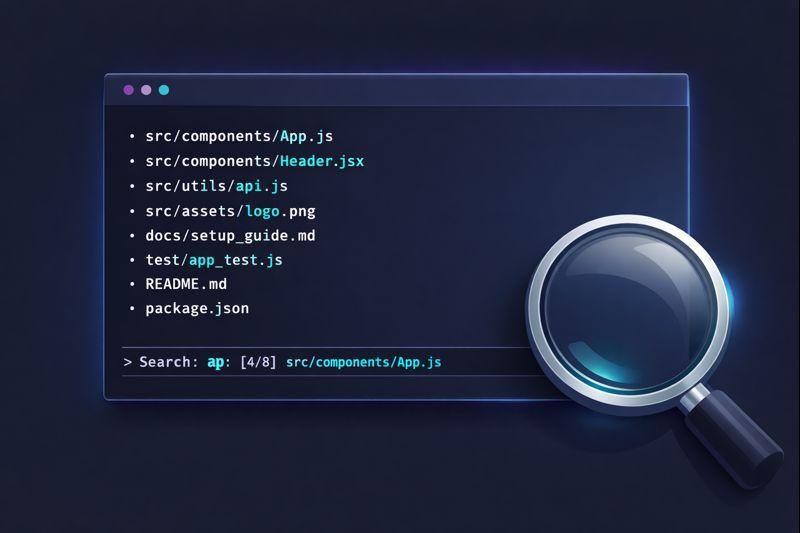
How much time do you spend navigating the terminal, searching through command history, or hunting for that one file buried deep in your project? If the answer is "too much," you're about to discover your new favorite tool. fzf is a command-line fuzzy finder that transforms how you interact with your terminal, making searches instantaneous and workflows dramatically more efficient.
What is fzf?
fzf is a general-purpose command-line fuzzy finder written in Go by Junegunn Choi. At its core, fzf takes any list of items as input and provides an interactive interface to filter and select from that list using fuzzy matching. But calling it "just a fuzzy finder" undersells its power—fzf becomes the connective tissue between countless command-line operations, turning tedious tasks into fluid, interactive experiences.
Whether you're opening files, searching command history, switching git branches, or killing processes, fzf provides a consistent, lightning-fast interface. Once you integrate it into your workflow, you'll wonder how you ever lived without it.
Installation
Installing fzf is straightforward on most systems:
# Debian/Ubuntu
sudo apt install fzf

# macOS (Homebrew)
brew install fzf

# Arch Linux
sudo pacman -S fzf

# Using git (any platform)
git clone --depth 1 https://github.com/junegunn/fzf.git ~/.fzf
~/.fzf/install
After installation, you'll want to enable shell integration for the best experience. Add the appropriate line to your shell configuration:
# Bash (~/.bashrc)
eval "$(fzf --bash)"

# Zsh (~/.zshrc)
eval "$(fzf --zsh)"

# Fish (~/.config/fish/config.fish)
fzf --fish | source
Basic Usage
At its simplest, running fzf alone will search through files in the current directory:
# Search files interactively
fzf

# Pipe any list to fzf
ls | fzf
find . -type f | fzf
cat file.txt | fzf
The power comes from combining fzf with other commands:
# Open selected file in vim
vim $(fzf)

# Store selection in a variable
file=$(fzf)
echo "Selected: $file"

# Select multiple items with -m
vim $(fzf -m)
The Search Syntax That Changes Everything
fzf's search syntax is where its real power shines. Understanding these patterns will make you dramatically faster at finding what you need.
Fuzzy Matching (Default)
By default, fzf uses fuzzy matching—characters don't need to be consecutive:
# Typing "abc" matches:
# - "abc"
# - "aXbXc"
# - "a___b___c"
# Characters just need to appear in order
Exact and Positional Matching
'word     # Exact match (prefix with single quote)
^word     # Must START with "word"
word$     # Must END with "word"
!word     # Must NOT contain "word"
!^word    # Must NOT start with "word"
!word$    # Must NOT end with "word"
Combining Patterns
word1 word2     # Must contain BOTH (AND, separated by space)
word1 | word2   # Must contain EITHER (OR)

# Real examples:
^src .js$        # Starts with "src", ends with ".js"
.py$ !test       # Python files NOT containing "test"
^app | ^lib .ts$ # TypeScript in app/ or lib/ directories
Shell Integration: The Three Magic Shortcuts
Once you enable shell integration, fzf provides three keyboard shortcuts that become indispensable:
Ctrl+T: Paste Files
Press Ctrl+T at any point in your command line to fuzzy-search files and paste the selection:
# Type: vim <Ctrl+T>
# Search and select: config.ts
# Result: vim config.ts
Ctrl+R: Search History
Press Ctrl+R to interactively search your command history. This is a massive upgrade from the default bash/zsh reverse search:
# Press Ctrl+R, type "docker", and see all docker commands you've run
# Select one, and it's ready to execute or modify
Alt+C: Change Directory
Press Alt+C to fuzzy-search directories and immediately cd into your selection:
# Press Alt+C, type "comp"
# Select "src/components"
# You're now in that directory
Preview: See Before You Select
One of fzf's most powerful features is the preview window. It shows you what you're selecting before you commit:
# Basic preview
fzf --preview 'cat {}'

# Syntax-highlighted preview with bat
fzf --preview 'bat --color=always --style=numbers {}'

# Preview with specific window position
fzf --preview 'cat {}' --preview-window=right:50%
fzf --preview 'cat {}' --preview-window=up:40%
For different file types, you can create smart previews:
fzf --preview '
  if file --mime {} | grep -q binary; then
    file {}
  else
    bat --color=always --style=numbers {}
  fi
'
Real-World Workflows
Here's where fzf becomes truly transformative. These workflows will become second nature:
Git Operations
# Checkout a branch interactively
git checkout $(git branch | fzf)

# Browse git log and preview commits
git log --oneline | fzf --preview 'git show {1}'

# Stage files interactively
git add $(git status -s | fzf -m | awk '{print $2}')
Process Management
# Find and kill a process
kill $(ps aux | fzf | awk '{print $2}')

# Or with a dedicated function:
fkill() {
  local pid
  pid=$(ps aux | sed 1d | fzf -m | awk '{print $2}')
  [[ -n "$pid" ]] && echo "$pid" | xargs kill
}
SSH Connections
# SSH to a host from your config
ssh $(grep "Host " ~/.ssh/config | cut -d' ' -f2 | fzf)
Docker Management
# Start a stopped container
docker ps -a | fzf --header-lines=1 | awk '{print $1}' | xargs docker start
Interactive Search with ripgrep
# Search file contents and jump to the match
rg --line-number . | fzf --delimiter ':' \
  --preview 'bat --color=always {1} --highlight-line {2}'
Configuration
fzf is configured through environment variables, making it easy to set defaults in your shell configuration:
# Add to .bashrc or .zshrc

# Default appearance
export FZF_DEFAULT_OPTS="
  --height=60%
  --layout=reverse
  --border=rounded
  --margin=1
  --padding=1
  --info=inline
  --prompt='> '
  --pointer='▶'
  --marker='✓'
  --preview-window=right:50%:border-rounded
"

# Use fd instead of find for better performance
export FZF_DEFAULT_COMMAND='fd --type f --hidden --follow --exclude .git'
export FZF_CTRL_T_COMMAND="$FZF_DEFAULT_COMMAND"
export FZF_ALT_C_COMMAND='fd --type d --hidden --follow --exclude .git'

# Enable preview for Ctrl+T
export FZF_CTRL_T_OPTS="
  --preview 'bat --color=always --style=numbers --line-range=:500 {}'
  --bind 'ctrl-/:toggle-preview'
"

# Enable preview for Alt+C
export FZF_ALT_C_OPTS="
  --preview 'tree -C {} | head -100'
"
Navigation and Selection Keys
Here are the most useful key bindings within the fzf interface:
| Key | Action |
|---|---|
Ctrl+J / Down | Move down |
Ctrl+K / Up | Move up |
Enter | Select and exit |
Tab | Toggle selection (multi-select) |
Ctrl+A | Select all |
Ctrl+/ | Toggle preview |
Shift+Up/Down | Scroll preview |
Esc / Ctrl+C | Cancel |
Useful Aliases and Functions
Add these to your shell configuration for even quicker access:
# Edit file with preview
fe() {
  local file
  file=$(fzf --preview 'bat --color=always {}')
  [[ -n "$file" ]] && ${EDITOR:-vim} "$file"
}

# cd to directory with preview
fcd() {
  local dir
  dir=$(fd --type d | fzf --preview 'tree -C {} | head -50')
  [[ -n "$dir" ]] && cd "$dir"
}

# Git aliases
alias gb='git checkout $(git branch -a | fzf)'
alias glog='git log --oneline | fzf --preview "git show {1}"'
alias ga='git add $(git status -s | fzf -m | awk "{print \$2}")'

# General aliases
alias preview="fzf --preview 'bat --color=always --style=numbers {}'"
alias ff='fd --type f | fzf --preview "bat --color=always {}"'
Quick Reference
| Task | Command / Pattern |
|---|---|
| Basic usage | fzf |
| Multi-select | fzf -m |
| With preview | fzf --preview 'cat {}' |
| File paste (shell) | Ctrl+T |
| History search | Ctrl+R |
| Directory cd | Alt+C |
| Exact match | 'query |
| Starts with | ^query |
| Ends with | query$ |
| Exclude | !query |
Conclusion
fzf is the kind of tool that fundamentally changes how you use the terminal. What starts as "a fuzzy finder" quickly becomes the backbone of your command-line workflow. The combination of instant fuzzy search, powerful filtering syntax, and seamless shell integration makes every interaction faster and more intuitive.
Start with the basic shell integrations—Ctrl+R for history, Ctrl+T for files, and Alt+C for directories. As these become muscle memory, you'll naturally discover more ways to integrate fzf into your workflow. Combined with tools like bat for previews and fd for file finding, fzf becomes the hub of an incredibly powerful terminal experience.
For more examples and advanced usage, check out the official fzf repository and its extensive wiki.